
Advanced Image Converter
Upload Image
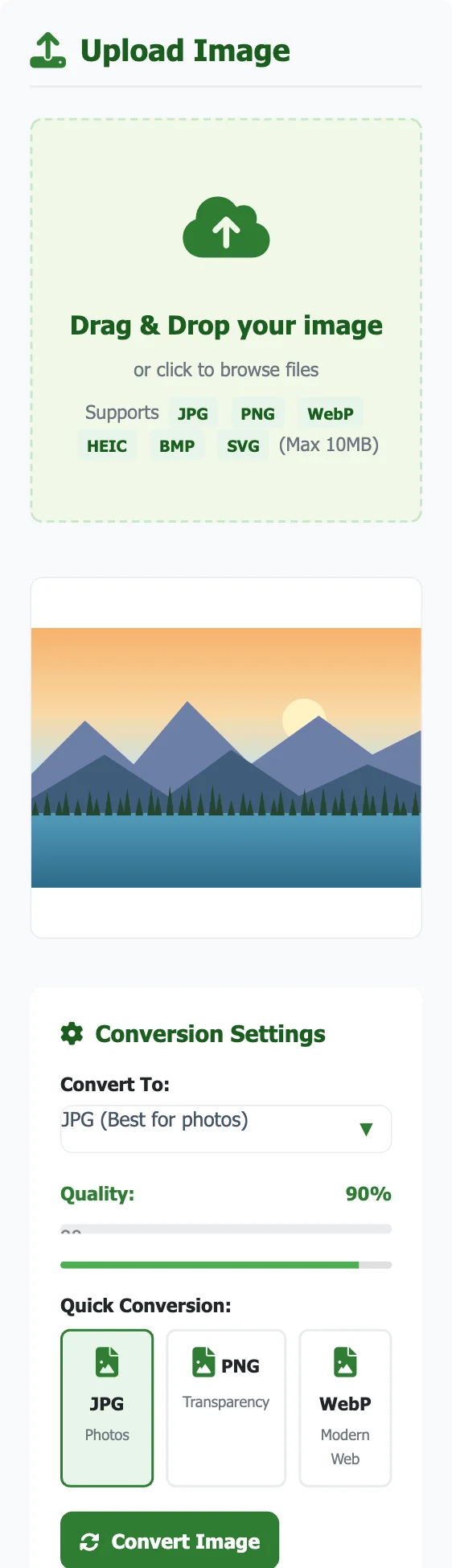
Drag & Drop your image
or click to browse files
Supports JPG PNG WebP HEIC BMP SVG (Max 10MB)
Original image will appear here
Conversion Settings
Converted Image
Converted image will appear here
Pro Tips for Best Results
- JPG – Best for photographs and complex images with many colors. Use quality 80-90 for optimal balance.
- PNG – Ideal for images with transparency or simple graphics. Produces lossless quality but larger files.
- WebP – Modern format that provides 25-35% smaller files than JPG at similar quality. Best for web use.
- HEIC – iPhone format with better compression than JPG. Convert to JPG/PNG for wider compatibility.
- BMP – Uncompressed format. Convert to JPG/PNG for smaller file sizes.
- TIFF and RAW – Most browsers cannot open these. Export them as JPG or PNG from your photo app, then convert here.
- SVG – Vector format. Convert to PNG for non-vector contexts.
- For social media, use JPG at 80-90% quality to balance quality and file size.
- For logos or graphics with transparency, PNG is the best choice despite larger file size.
- WebP is supported by all modern browsers and provides the best compression for web.
Convert images between JPG, PNG and WebP in your browser, including iPhone HEIC photos and SVG graphics. Choose the output format, set the quality, and download the converted file. The tool shows the old and new size so you can see how much space you saved.
How to convert an image
- Upload or drop an image (up to 10 MB).
- Choose JPG, PNG or WebP, or use a Quick Conversion preset, and set the quality (90 is a good default for JPG and WebP).
- Click Convert Image, check the new size and dimensions, then Download.
Common conversions
| Conversion | Why |
|---|---|
| HEIC to JPG | iPhone photos that Windows, websites and forms will not open |
| WebP to PNG or JPG | Images saved from websites that older apps cannot edit |
| PNG to JPG | Make large photos saved as PNG much smaller |
| JPG or PNG to WebP | Smaller images for your own website, usually 25–35% lighter than JPG at similar quality |
| SVG to PNG | Use a logo or icon where SVG is not accepted |

JPG, PNG or WebP?
- JPG: best for photos and anything you upload to forms; small files, no transparency.
- PNG: lossless, keeps transparency; best for screenshots, logos and text. Large for photos.
- WebP: small files with transparency support; ideal for websites. Some older software and government portals do not accept it.
Converting iPhone HEIC photos
iPhones save photos as HEIF (.heic) files by default because they take less space than JPEG at the same quality. Many Windows apps and upload forms still reject them. Upload the .heic file here and convert it to JPG, or switch future photos to JPEG on the iPhone under Settings › Camera › Formats › Most Compatible, as Apple explains.
How much smaller is WebP?
According to Google’s WebP documentation, lossless WebP images are 26% smaller than PNGs, and lossy WebP images are 25–34% smaller than comparable JPEGs. Converting website images to WebP is one of the simplest ways to make pages load faster, and every current browser can display them.
Frequently asked questions
Is my image uploaded?
No. Conversion happens in your browser, including HEIC decoding.
Why did my transparent background turn white?
JPG cannot store transparency, so transparent areas are filled in. Convert to PNG or WebP to keep a transparent background.
My converted file is still too big for a form. What now?
Use Resize Image to KB to hit an exact limit such as 50 KB or 100 KB.
Looking for something else? Browse all our free image tools.
Sources
Checked in November 2026:
- Apple Support: Using HEIF or HEVC media on Apple devices
- Google for Developers: An image format for the Web (WebP)
How to cite this tool
Using this tool for coursework, a report or research? You can cite it like this (APA 7th edition):
Kumar, M. (2026). Image Converter [Online tool]. FreeToolsLand. https://freetoolsland.com/ai-image-converter/
Related image tools
- Resize Image to KB: compress to an exact file size.
- Image Cropper: crop before converting.
- Remove EXIF and Location: strip GPS and camera data from photos before sharing.