
Secure Password Generator
Create strong, unique passwords with our advanced generator tool. Perfect for securing your online accounts.
Password Security Tips
- Use long passwords: Aim for at least 16 characters when possible.
- Include different character types: Combine uppercase, lowercase, numbers and symbols.
- Avoid common words: Don’t use dictionary words or personal information.
- Never reuse passwords: Use a unique password for every account.
- Change when needed: Change a password after a data breach or if you shared it; there is no need to change strong passwords on a schedule.
- Consider a password manager: Securely store and manage all your passwords.
How to create a strong password in 3 steps
- Pick a length. Move the slider to 16 or more for email, banking and anything important; 12 is the minimum for everyday accounts.
- Choose the characters. Keep uppercase, lowercase, numbers and symbols on, unless a website rejects symbols; then turn symbols off and add 2–4 more characters instead.
- Generate and copy. Click Generate, then Copy, and save the password straight into your password manager or the site’s sign-up form.
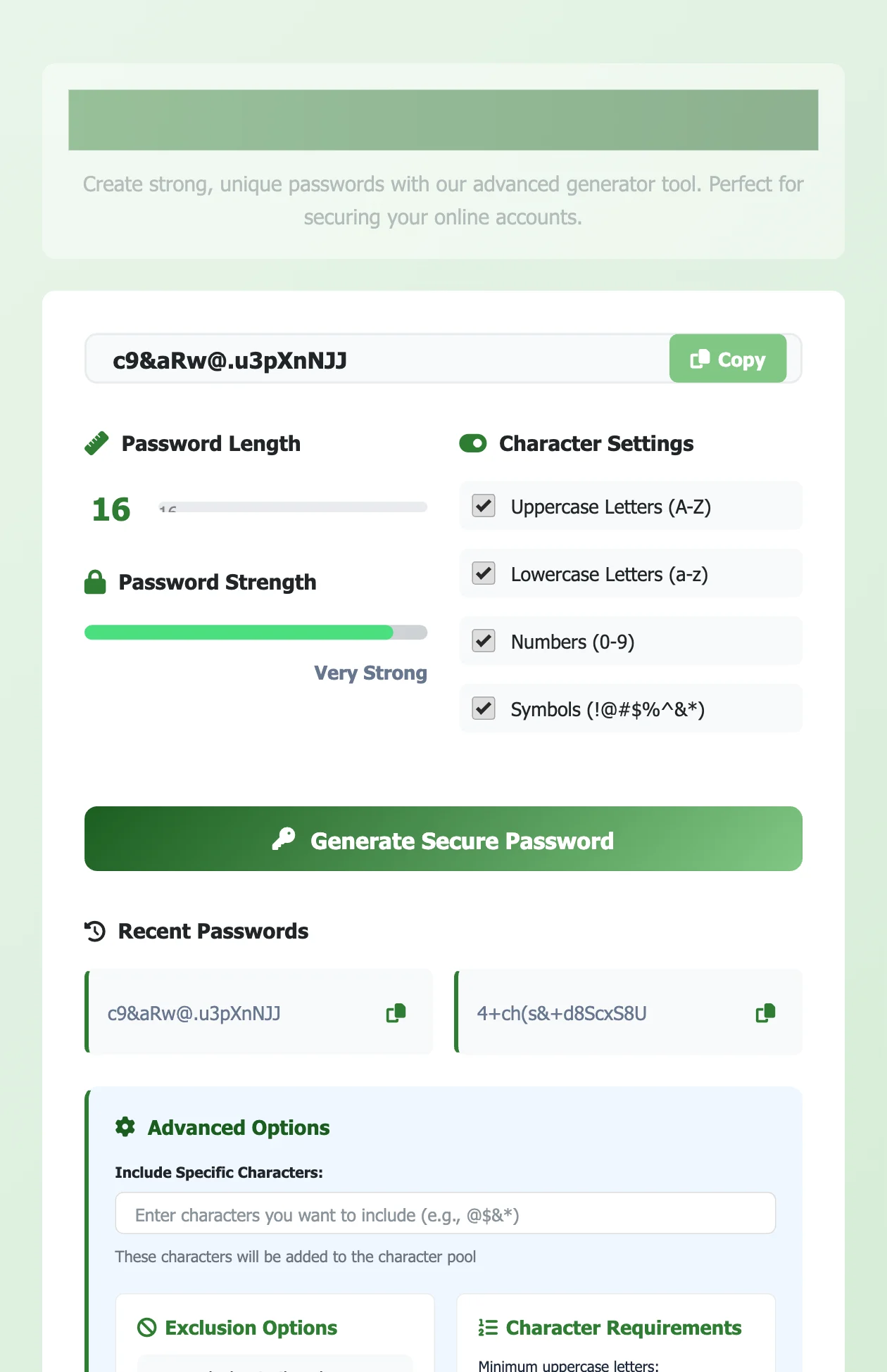
Every password is created in your browser with the Web Crypto API (crypto.getRandomValues), the same source of randomness browsers use for encryption. Nothing is sent to our server or saved: the Recent Passwords list disappears when you reload the page, and the generator keeps working if you go offline after the page has loaded.
Password generator based on your own words
Random passwords like q7#Lp2!vZr9@ are strong but impossible to remember. If you need a password you will type by hand, such as your laptop login or your password manager’s master password, use the From your own words generator above.
Type three or four words that mean something to you, for example mango cricket Jaipur. The tool shuffles them, adds random words from its own list, a random number and a symbol, and might give you Otter-Mango-482-Jaipur-Cricket-Lantern!. You remember your own words; the random parts are what make it hard to guess.
Be honest about the weak spot: words about you (your city, your pet, your team) can be guessed by someone who knows you or reads your social media. That is why the tool always mixes in random words and shows how many bits of real randomness the password has. Aim for 60 bits or more for important accounts: four random words plus a number and a symbol gets you there.
How strong is a random password?
| Length | Characters used | Strength (bits of entropy) |
|---|---|---|
| 8 | Lowercase letters only | about 38 bits |
| 12 | Letters and numbers | about 71 bits |
| 12 | Letters, numbers and symbols | about 79 bits |
| 16 | Letters, numbers and symbols | about 105 bits |
| 20 | Letters, numbers and symbols | about 131 bits |
Each extra character multiplies the number of possible passwords, so length matters more than clever substitutions like @ for a. Around 70 bits is out of reach for online guessing; 100 bits or more is safe even if a website’s password database is stolen and attacked offline.

Which password length should you use?
- 12 characters: the minimum for low-risk accounts (forums, newsletters). Use a 12 character password with all character types.
- 16 characters: email, banking, UPI and shopping apps, social media and work accounts.
- 20+ characters: Wi-Fi passwords, admin accounts and anything stored only in a password manager.
- Master password: a passphrase from the “From your own words” tool with at least 4 random words (60+ bits).
Choosing a password generator for a security-conscious team
For a team, the generator matters less than what happens to the password afterwards. Look for these five things:
- Cryptographic randomness: generated with the browser’s Web Crypto API or a password manager, never with a spreadsheet formula or
Math.random(). - Nothing stored or sent: the password should be created on the device, with no copy on someone else’s server. You can check this one by loading the page, turning off Wi-Fi and generating again.
- Length and character controls: 16+ characters by default, with options for systems that ban symbols or need a minimum of each type.
- A shared password manager: store and share team passwords in a manager (Bitwarden, 1Password and similar) instead of chat or email.
- Two-factor authentication: a strong password plus 2FA or a passkey on every shared account.
What the 2025 NIST password rules say
The US National Institute of Standards and Technology updated its password guidance in 2025 (SP 800-63B-4). It is written for organisations that run logins, but it is the clearest advice there is for anyone choosing a password:
- Length beats complexity. A password used on its own should be at least 15 characters. Eight is the minimum only when it is combined with a second factor such as a one-time code.
- No forced symbol rules. Sites should not demand “one capital, one number, one symbol”. A long passphrase of ordinary words is allowed and encouraged.
- No routine changes. You should not be forced to change a password every 90 days, only when there is a sign it has leaked.
- Room for long passwords. Sites should accept at least 64 characters, so a passphrase fits.
That is why the From your own words mode above mixes your words with random words, a number and a symbol: the result is easily longer than 15 characters and still easy to type on a phone.
Frequently asked questions
Is it safe to use an online password generator?
It is safe when the password is created on your device and never sent anywhere, which is how this one works. Avoid generators that need you to sign up or that email the password to you.
How do I make a password without symbols?
Untick “Symbols” and make the password a few characters longer. A 16-character password of letters and numbers is about as strong as a 14-character one with symbols.
Can I create a password from words I choose?
Yes. Use the “From your own words” section on this page. It keeps your words but adds random words, a number and a symbol so the result is not easy to guess.
Should I change my passwords every few months?
Not on a schedule. Current guidance from NIST says to change a password when there is a reason, such as a data breach or if you shared it, and to use a unique password for every account instead.
Looking for something else? Browse all our free generators.
Can I make a password generator based on keywords I choose?
Yes. Switch to the words mode and type your own keywords. The generator mixes them with random words, separators and optional numbers, so the result is memorable to you but not guessable from the keywords alone. Avoid names, birthdays and words someone could find on your social media.
How long should a password be in 2026?
At least 15 characters if it is the only thing protecting the account, following NIST’s 2025 guidance. With two-factor authentication turned on, 12 or more random characters is still a good choice.
Sources
Checked in November 2026:
How to cite this tool
Using this tool for coursework, a report or research? You can cite it like this (APA 7th edition):
Kumar, M. (2026). Strong Password Generator [Online tool]. FreeToolsLand. https://freetoolsland.com/strong-password-generator/
Related tools
- QR Code Generator: share a Wi-Fi password as a QR code instead of reading it out.
- Base64 Decoder and Encoder: decode tokens and config values (Base64 is encoding, not encryption).
- Letter Case Converter: change text to upper, lower or camelCase.