
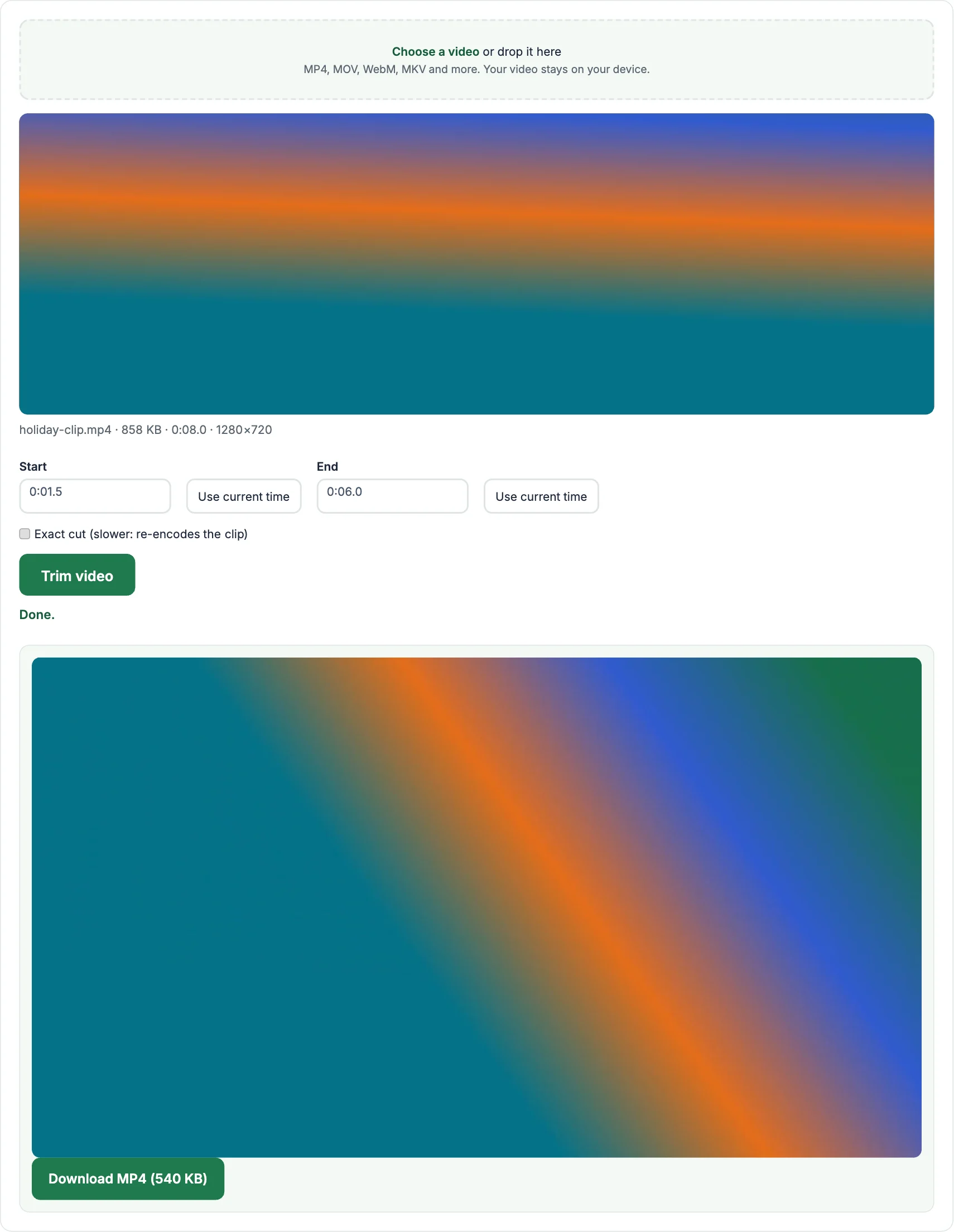
Cut a long video down to the part you need: remove the start and end, save a highlight, or keep only a few seconds for a status or a message. Set the start and end times, tap Trim video and download the clip. Your video is processed inside your browser with ffmpeg, the same open-source engine many video apps use. It is not uploaded to our server, so private clips stay private.
How to trim a video
- Tap Choose a video and pick the file.
- Play the video and pause where the clip should start, then tap Use current time next to Start. Do the same for End, or type the times, for example
0:12and0:45. - Tap Trim video, check the preview and tap Download.
Fast trim or exact cut?
By default the trimmer copies the video without re-encoding, so it finishes in a second or two and keeps the original quality. Videos can only be cut cleanly at certain frames (keyframes), so the clip may start up to a second or two earlier than the time you set. Tick Exact cut if you need it to start on exactly the right frame; this re-encodes the clip and takes longer.
Frequently asked questions
Does trimming reduce the quality?
No, not with the default fast trim. The clip is copied as it is. Exact cut re-encodes at high quality, so any difference is very small.
Can I trim a video on my phone?
Yes. Open this page in your phone browser, pick the video from your gallery and use the same steps.
Which format is the trimmed video?
An MP4 file. If your original was MOV or MKV, use Exact cut for the most compatible MP4.
Is my video uploaded?
No. Trimming happens in your browser and the video never leaves your device.
More free video tools
- Video to MP3: extract the sound as an MP3
- Video Compressor: make a video file smaller
- Video to GIF: turn a clip into a GIF
- Video Downloader: save public videos from Facebook, Instagram, X, TikTok, Pinterest and Snapchat
- MP3 to MP4: turn a song and a picture into a video
- Audio Converter: convert between MP3, WAV, M4A and OGG