
Text 1
Text 2
Comparison Summary
Added Characters
Removed Characters
Total Differences
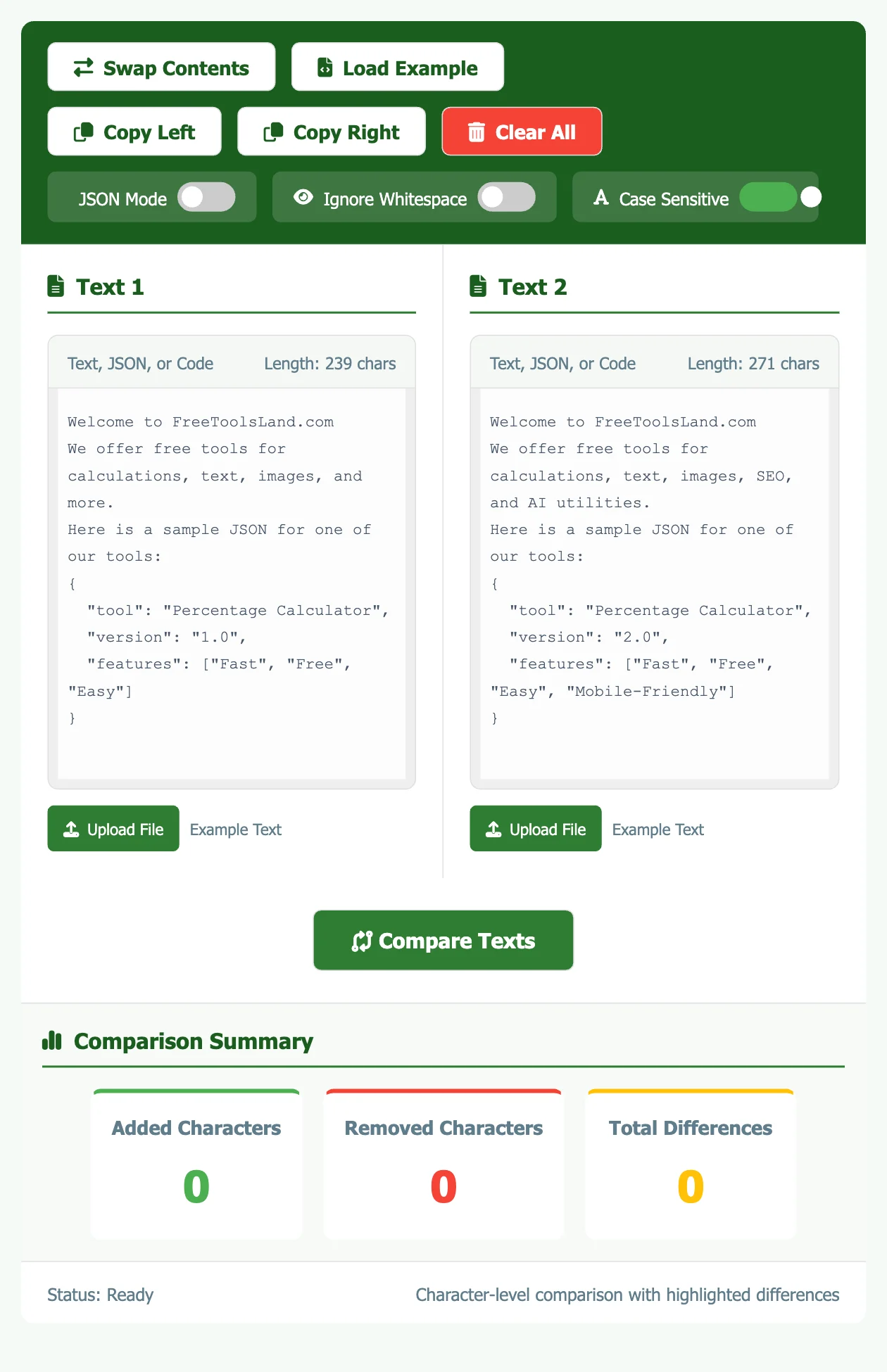
Compare two texts and see exactly what changed. Paste the original on the left and the new version on the right, click Compare Texts, and the differences are highlighted, with a summary of added characters, removed characters and the total number of differences. Use it as a quick diff checker for documents, code, JSON or config files.
How to compare two texts
- Paste the original into Text 1 and the changed version into Text 2 (or click Load Example).
- Click Compare Texts. Added and removed text is highlighted and counted in the Comparison Summary.
- Use the options when you need them: JSON Mode for JSON, Ignore Whitespace to skip spacing changes, Case Sensitive on or off, or Upload File to load a text file. Swap Contents reverses the comparison.
What people use it for
- Documents and contracts: spot every edit between two drafts before you sign or send.
- Code and config: find the one changed value between two versions of a file.
- JSON and API responses: format both with the JSON Formatter first, then compare, so line breaks match.
- Translations and copy edits: check what an editor or AI tool changed in your text.

Tips for a clean comparison
- Spaces, line breaks and capital letters all count as differences. If you only care about wording, tidy both texts the same way first (for example with the Case Converter).
- Text copied from Word or PDF may contain curly quotes or non-breaking spaces that look identical but count as changes.
How a text comparison works
A diff checker looks for the longest run of text that both versions share, then marks everything else as added or removed. Most tools, including the Git version-control system, use a method published by Eugene Myers in 1986, which finds the smallest set of changes that turns one text into the other.
That is why moving a paragraph shows up as a deletion in one place and an addition in another: the comparison sees changes, not intentions.
Ways students and writers use it
- Check what an editor or teacher changed in your essay.
- Compare two versions of a contract, policy or terms page.
- Spot what changed between two JSON or config files (format both with the JSON formatter first).
- Find the line you accidentally deleted from a long list.
Frequently asked questions
Is my text uploaded?
No. The comparison runs in your browser, so it is safe for confidential drafts.
Can I compare Word or PDF files?
Copy the text out of each file and paste it into the two boxes. Formatting such as bold or fonts is not compared, only the text.
Looking for something else? Browse all our free text and developer tools.
Is this a diff checker?
Yes. “Diff checker”, “text compare” and “compare two texts” all mean the same thing: it highlights what was added, removed or changed between two versions.
Sources
Checked in November 2026:
How to cite this tool
Using this tool for coursework, a report or research? You can cite it like this (APA 7th edition):
Kumar, M. (2026). Text Compare [Online tool]. FreeToolsLand. https://freetoolsland.com/text-compare-online/
Related tools
- Word Counter: compare the length of two versions.
- Regex Tester: find and replace patterns before comparing.