
You have a video and only want the sound: a lecture to listen to on the bus, a voice note someone sent as a video, a song from your own recording, or background music for an edit. Most online converters make you upload the whole file to their server, wait in a queue, and then download it again.
You do not need to do that. A modern browser can pull the audio out of a video on your own phone or computer, which is faster for big files and keeps private recordings private. This guide shows how, which settings to choose, and which free tool fits each file type.
In this guide
- The quick way: three steps
- Which tool should I use?
- Which quality (bitrate) should I choose?
- MP3, M4A, WAV or OGG?
- Only want part of the video?
- On iPhone and Android
- Is it legal to convert a video to MP3?
- Frequently asked questions
The quick way: three steps
- Open the Video to MP3 converter (it accepts MP4, MOV, MKV, WebM, AVI and most other formats).
- Choose your video. Nothing is uploaded: the file stays on your device.
- Pick MP3 and a quality, optionally set a start and end time, then tap Convert and save the file.
The first conversion takes a little longer because the browser downloads the free conversion engine, about 30 MB. After that it is cached, and most short videos convert in a few seconds.
Which tool should I use?
All of these run on the same engine; the format pages simply explain the quirks of each file type.
| Your file | Tool | Good to know |
|---|---|---|
| MP4 from a phone, camera or download | MP4 to MP3 | The most common case; AAC audio inside MP4 converts cleanly |
| MOV from an iPhone or Mac | MOV to MP3 | iPhone screen recordings and videos are MOV |
| MKV, often from a recorder or a series download | MKV to MP3 | Takes the main audio track |
| WebM from a browser or screen recorder | WebM to MP3 | Usually Opus audio, which becomes MP3 |
| An audio file in the wrong format | Audio Converter | WAV, M4A, OGG, FLAC, AAC and more to MP3 and back |
| MP3 you want to post as a video | MP3 to MP4 | Adds a still image so you can upload audio to YouTube or Instagram |
Which quality (bitrate) should I choose?
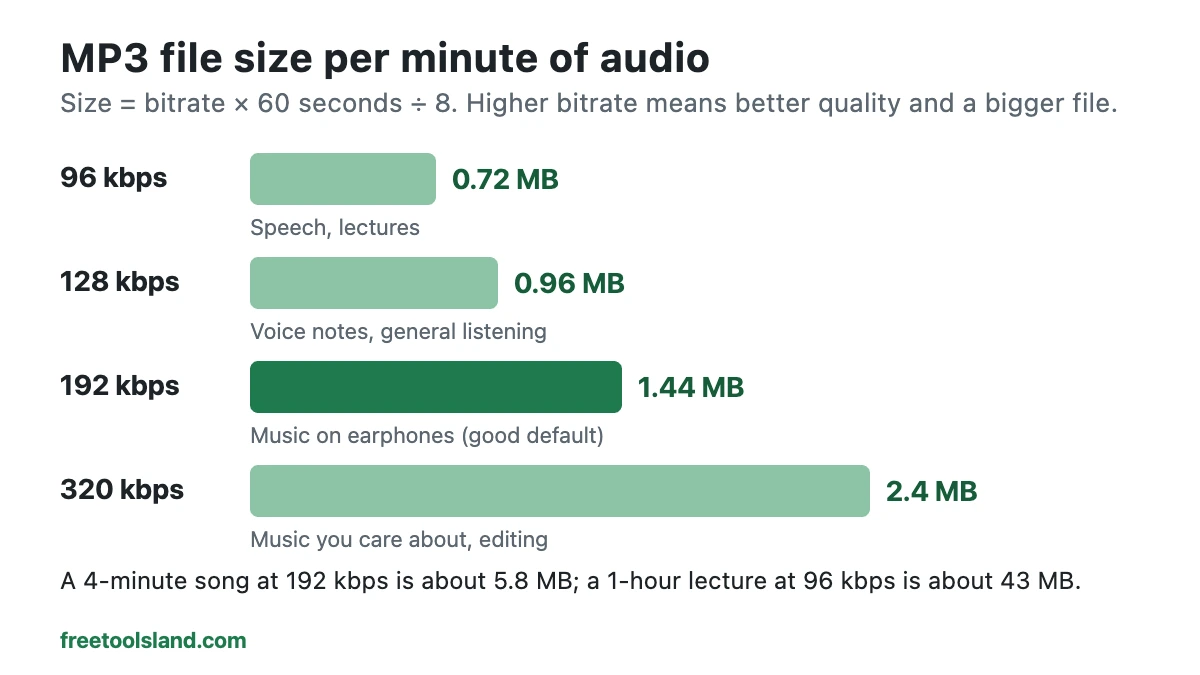
Bitrate is how much data is used for each second of sound. Higher bitrate means better quality and a bigger file. For MP3, these are the useful settings:
| Bitrate | File size per minute | Best for |
|---|---|---|
| 96 kbps | about 0.7 MB | Speech, lectures, podcasts on a phone |
| 128 kbps | about 1 MB | Voice notes, general listening |
| 192 kbps | about 1.4 MB | Music on earphones; a good default |
| 320 kbps | about 2.4 MB | Music you care about, or audio you will edit later |
One thing to know: converting cannot add quality that was not there. A phone video usually has 128 to 256 kbps AAC audio, so 320 kbps MP3 makes a bigger file but not better sound. For speech, 128 kbps is plenty.
MP3, M4A, WAV or OGG?
- MP3 plays everywhere: every phone, car stereo, smart speaker and editing app. Choose it unless you have a reason not to.
- M4A (AAC) sounds slightly better than MP3 at the same size and is the native format on iPhone and in Apple Music.
- WAV is uncompressed, about 10 MB per minute. Use it only if you will edit the audio and want to avoid any further quality loss.
- OGG (Vorbis) is open and efficient, and works in Android and most browsers, but not in every car or older device.
Only want part of the video?
Turn on the cut option in the converter and enter a start and end time, for example 1:05 to 2:40. You get just that section as an MP3, which is faster than converting the whole file and trimming afterwards. To cut the video itself instead, use the video trimmer.
On iPhone and Android
- iPhone: tap Choose file, then Photo Library for videos you recorded, or Browse for files. After converting, tap the download and choose Save to Files; the MP3 appears in Files → Downloads.
- Android: pick the video from Gallery or Files. The MP3 is saved to your Downloads folder and shows up in most music players.
- Very long or large videos (roughly over 500 MB) can run out of memory in a phone browser. A laptop handles them better, or compress the video first.
Is it legal to convert a video to MP3?
Converting your own recordings, lectures you are allowed to keep, or content that is licensed for reuse is fine. Copying music or videos you do not have the rights to, and sharing them, is not, and many platforms forbid downloading in their terms. Our tools do not download from YouTube for that reason; they only convert files already on your device.
Frequently asked questions
Does converting reduce quality?
Each lossy conversion loses a little, but at 192 kbps or above it is very hard to hear. Convert once from the original video rather than converting an MP3 again.
Why is my MP3 silent or very short?
Some screen recordings have no audio track, and some videos store sound in a second track. Play the video with the sound on first; if it has no sound, there is nothing to extract.
Can I convert several videos at once?
Convert them one after another. Each conversion uses your device’s memory, so running them in a row is faster and more reliable than in parallel.
Is it really free with no watermark?
Yes. There is no sign-up, no watermark and no limit on how many files you convert, and the files never leave your device.
For more free tools that run in your browser, see the video tools page.
Sources
Checked in November 2026: